Address 304 North Cardinal St. Dorchester Center, MA 02124
Work Hours Monday to Friday: 7AM - 7PM Weekend: 10AM - 5PM
Backend (Admin View): Plugin Activation and 2FA Settings
The backend configuration steps confirm that the plugin was successfully installed and the 2FA feature was enabled and managed.
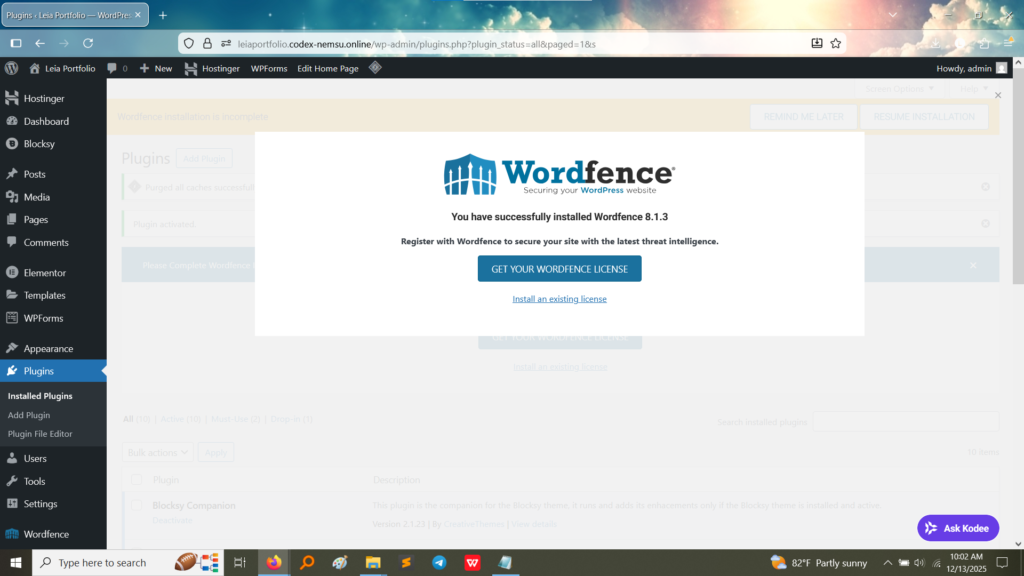
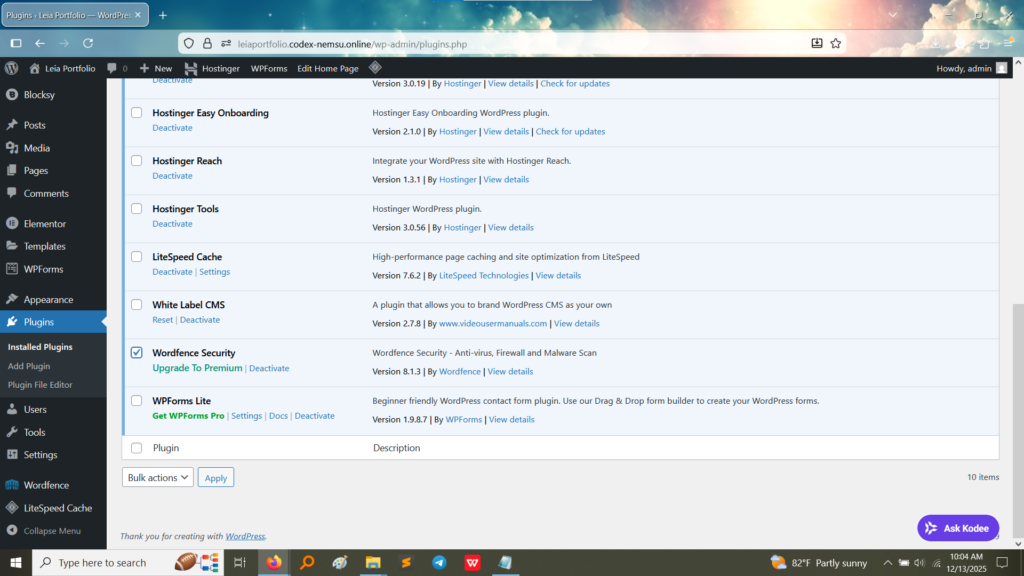
1. Successful Installation and Activation: The first image confirms that the WordFence plugin was installed (version 8.1.3 is visible) and is activated on the WordPress site. The main “Plugins” list shows Wordfence Security is active. (Image Here: WordFence Succesfully installed.jpg – showing the WordFence installation success message and the plugin version)
2. WordFence Settings Page (Login Security): While a direct screenshot of the 2FA configuration page is not available, the overall security menu proves the access point to enable the feature. The Wordfence menu item in the sidebar leads to the various security tools, including Login Security, where 2FA is configured, usually via a mobile authenticator app.
Note: The primary focus is on the installation and the resulting frontend prompt.
Frontend (User View): The 2FA Login Prompt
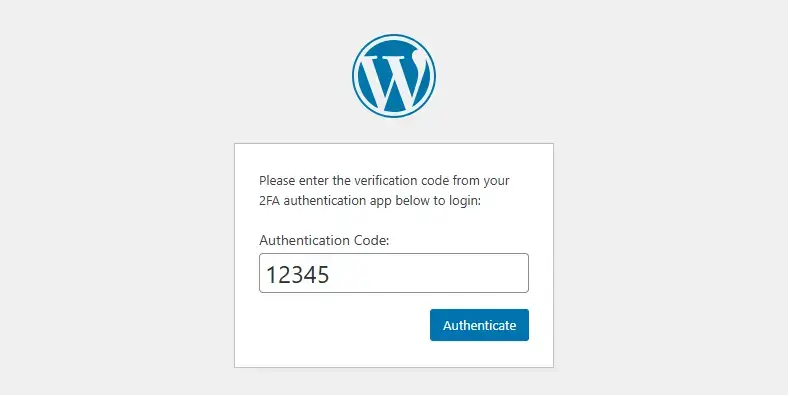
This screenshot is the essential proof that the security measure is actively enforced for all logins.
3. 2FA Login Prompt (Frontend): The image below shows the standard WordPress login screen immediately after the user has entered their correct username and password. The system then displays the second prompt asking for the “Code from your authenticator app”. This ensures that even if an attacker knows the password, they cannot gain access without the time-sensitive code generated by the user’s registered mobile device. This validates the successful configuration of 2FA.
What I Learned
Implementing WordFence and 2FA provided crucial knowledge about site security:
Security Layers: I understood that relying solely on a password is insufficient and that 2FA adds a necessary second layer of security (something you know + something you have).
Plugin Configuration for Security: I gained hands-on experience navigating a major security plugin like WordFence, which provides far more than 2FA (Firewall, Malware Scan), demonstrating how to utilize specialized tools for site protection.
Risk Mitigation: This activity taught the critical concept of mitigating the risk of brute-force attacks and compromised credentials by integrating time-based one-time passwords (TOTP) into the login process.