Address
304 North Cardinal St.
Dorchester Center, MA 02124
Work Hours
Monday to Friday: 7AM - 7PM
Weekend: 10AM - 5PM
Address
304 North Cardinal St.
Dorchester Center, MA 02124
Work Hours
Monday to Friday: 7AM - 7PM
Weekend: 10AM - 5PM

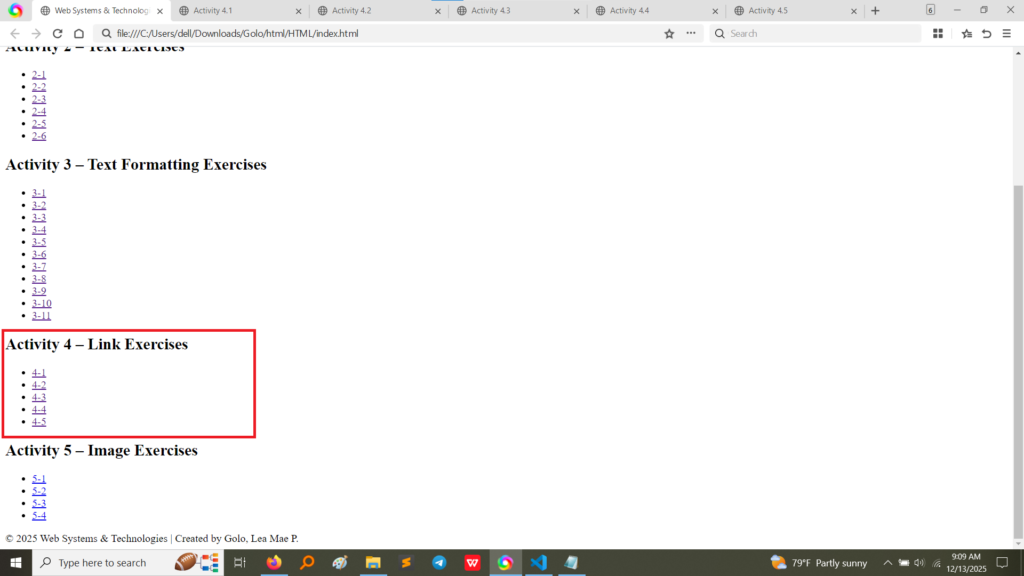
These exercises demonstrated linking to external URLs, a fundamental function of the web.
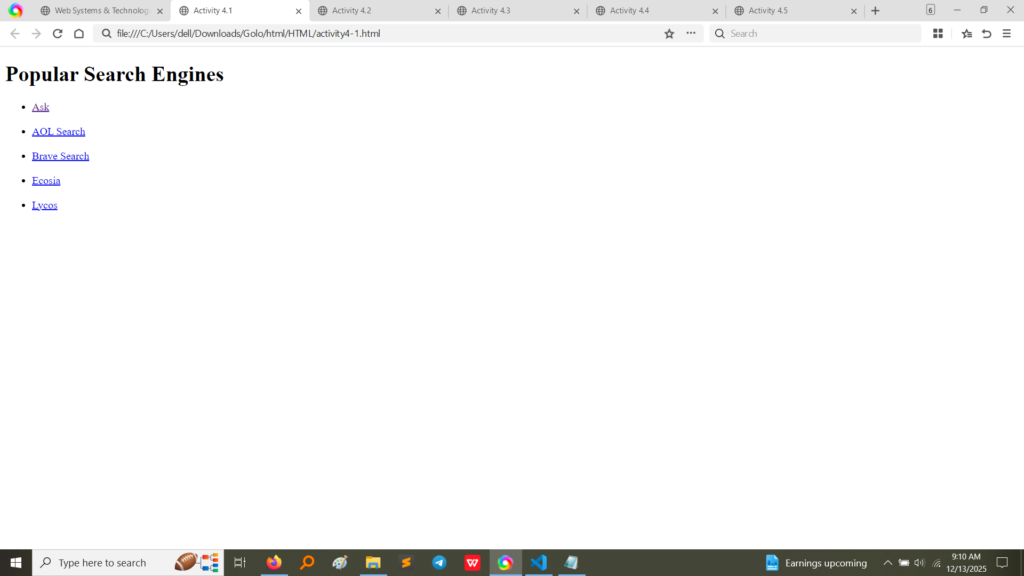
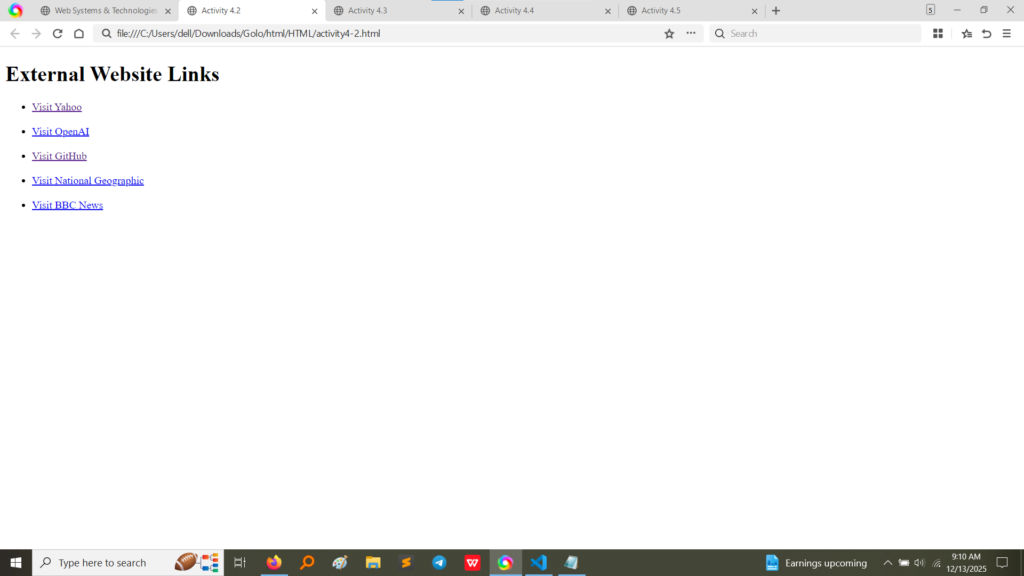
<a> tag with the href attribute set to the full, absolute URL of the target website (e.g., https://www.ask.com).
target="_blank" attribute. This instruction tells the browser to open the link in a new tab or window, preventing the user from leaving the current page.target="_blank" for a variety of general external sites. (Image Here: html code.png – showing activity4-1.html and activity4-2.html code)target="_blank" attribute in the code. (Image Here: output2.png – showing output for activity4-1.html) (Image Here: output3.png – showing output for activity4-2.html)Activity 4.3 focused on creating links between pages located within the same directory or website structure.
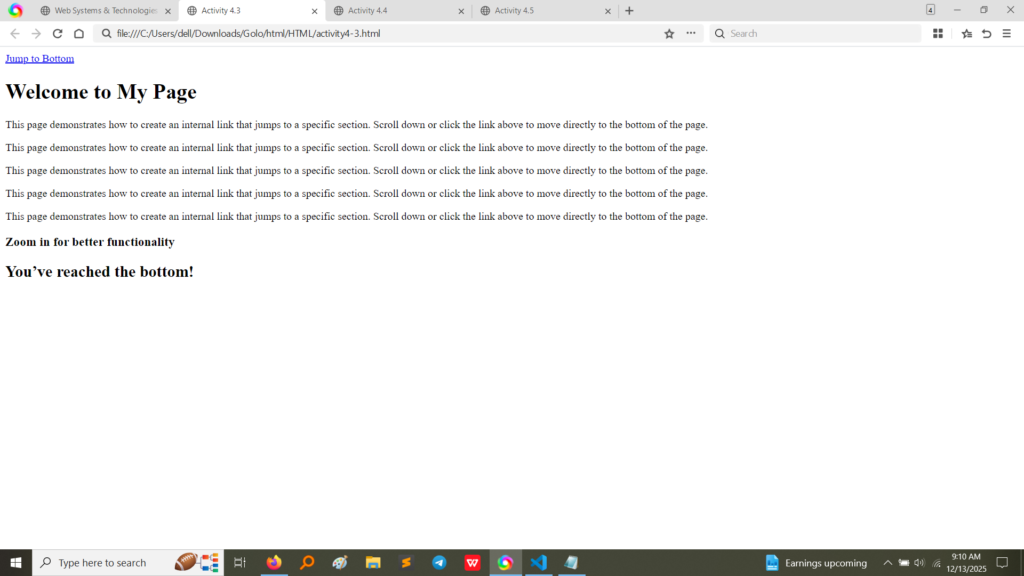
href attribute (e.g., href="activity4-4.html"). Since both files are in the same folder, only the file name is needed, demonstrating efficient local linking without using the full URL. (Image Here: html code2.png – showing activity4-3.html code)activity4-4.html). The link on the originating page successfully loaded this new, internal page.These were the most complex links, designed to allow users to navigate instantly to different sections within the same document, eliminating the need for manual scrolling.
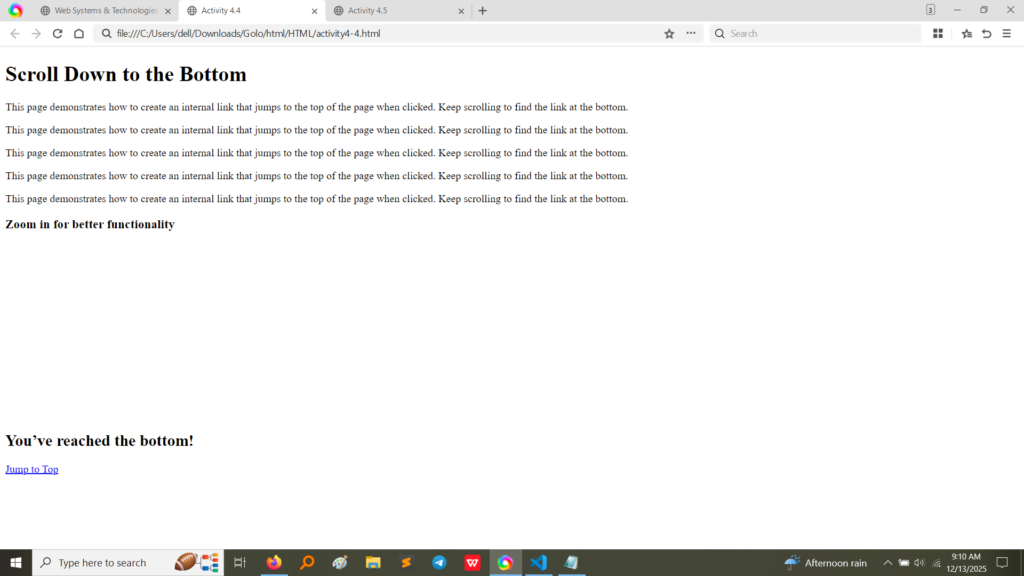
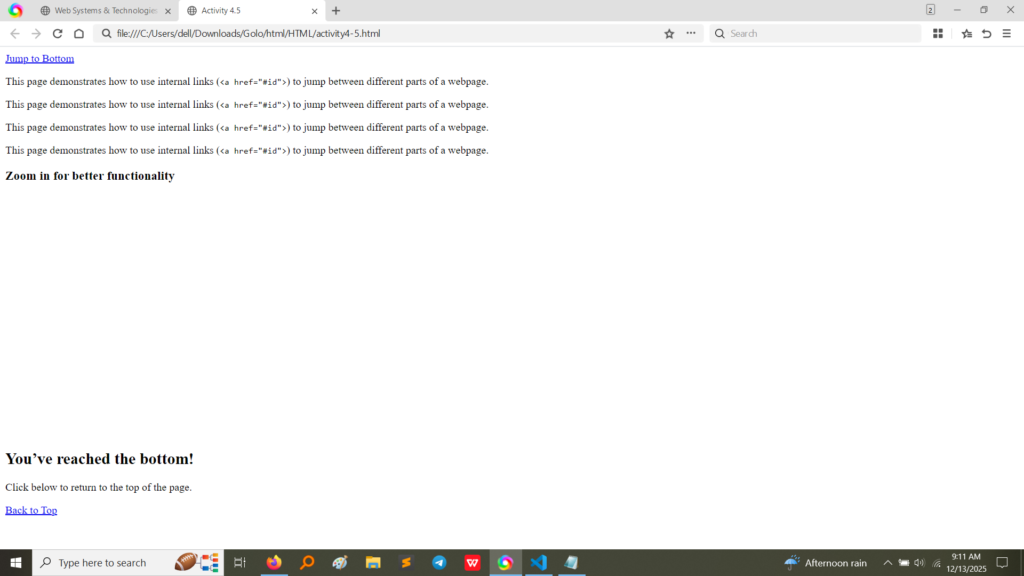
href="#id_name" (e.g., <a href="#bottom">Jump to Bottom</a>).id attribute (e.g., <div id="bottom">...</div>).id="top"). (Image Here: html code3.png – showing activity4-4.html code) (Image Here: output6.png – showing output for activity4-5.html code)id element, proving the fragment link functionality. (Image Here: output4.png – showing output for activity4-3.html) (Image Here: output5.png – showing output for activity4-4.html) (Image Here: output6.png – showing output for activity4-5.html)Activity 4 provided practical experience with the core navigation component of HTML:
https://) for external links and relative paths (just the file name or a path like ../file.html) for internal links within a website structure.target="_blank" is an important UX decision to control whether external links interrupt the user’s flow on the current site.# with IDs) is vital for creating usable, scrollable single-page layouts or providing a helpful table of contents.