Address 304 North Cardinal St. Dorchester Center, MA 02124
Work Hours Monday to Friday: 7AM - 7PM Weekend: 10AM - 5PM
Backend (Admin View): Core Setup and Configuration
The backend configuration steps confirm that the necessary foundation for user management was established.
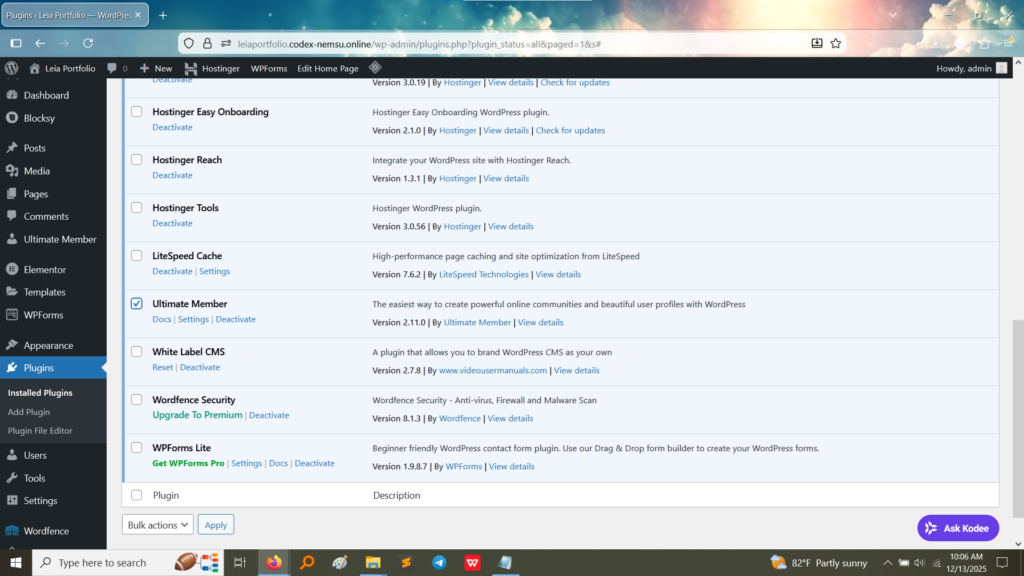
1. Plugin Activation: The image below confirms that the Ultimate Member plugin (Version 2.11.0) was successfully installed and activated, making its features available for configuration. (Image Here: ultimate member Activated in plugin.jpg – showing Ultimate Member listed as an activated plugin)
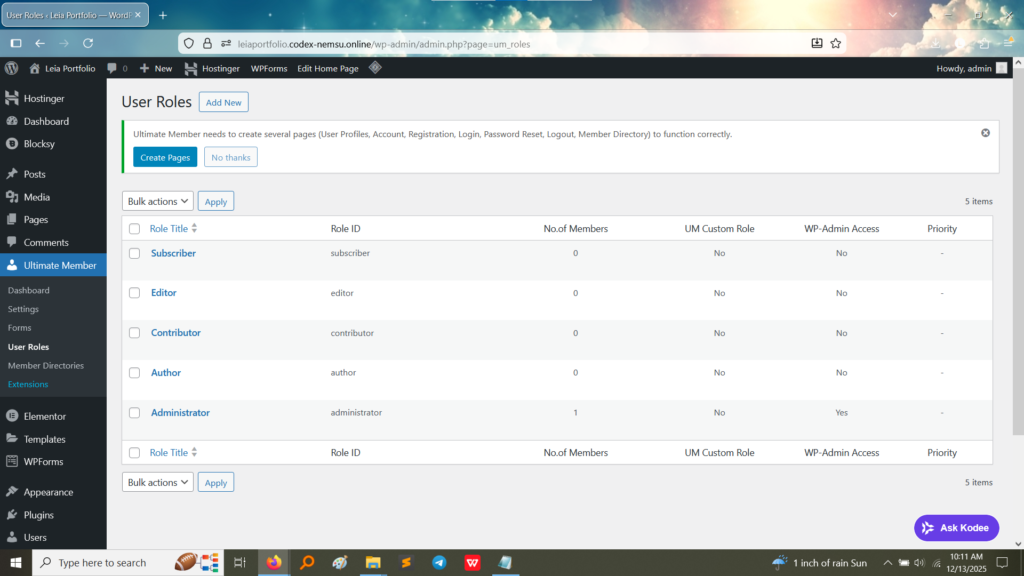
2. User Role Management: This section confirms the system can manage different user roles beyond the WordPress defaults (Administrator, Author, Editor, etc.). Ultimate Member provides a dedicated interface to manage these roles, confirming the ability to control access and permissions. (Image Here: ultimate member – User Dashbaord.jpg – showing the “User Roles” configuration table within Ultimate Member)
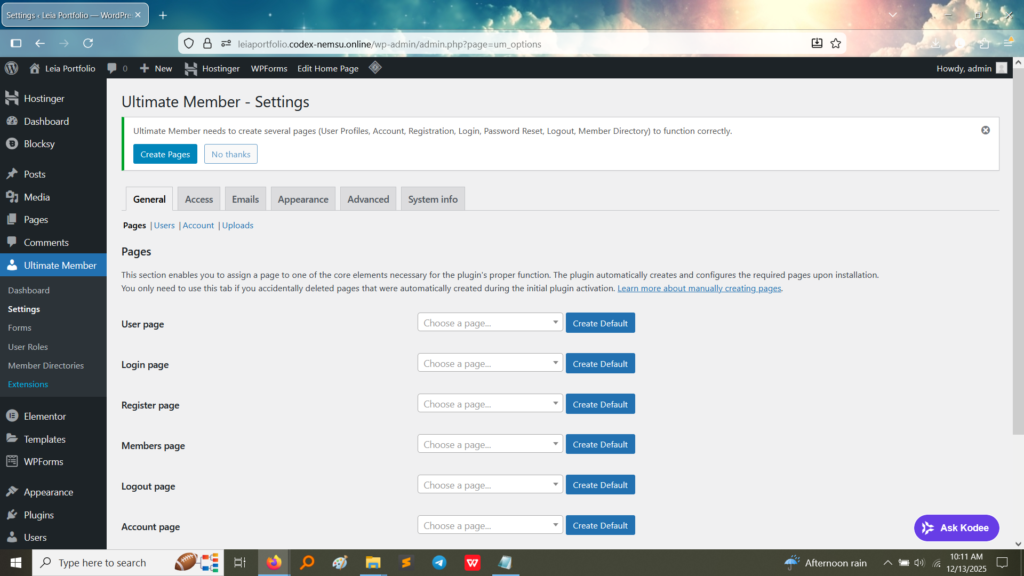
3. Automatic Page Generation: A crucial part of installing a membership plugin is generating the necessary frontend pages. The “Settings” page shows a banner prompt to “Create Pages” (or an implied status that these pages—User Profile, Login, Register, Logout, etc.—have been assigned). The plugin handles the complex task of creating the public-facing endpoints for user interactions. (Image Here: Ultimate Member – Settings.jpg – showing the Ultimate Member Settings page, particularly the “Pages” section for assigning core functionality pages)
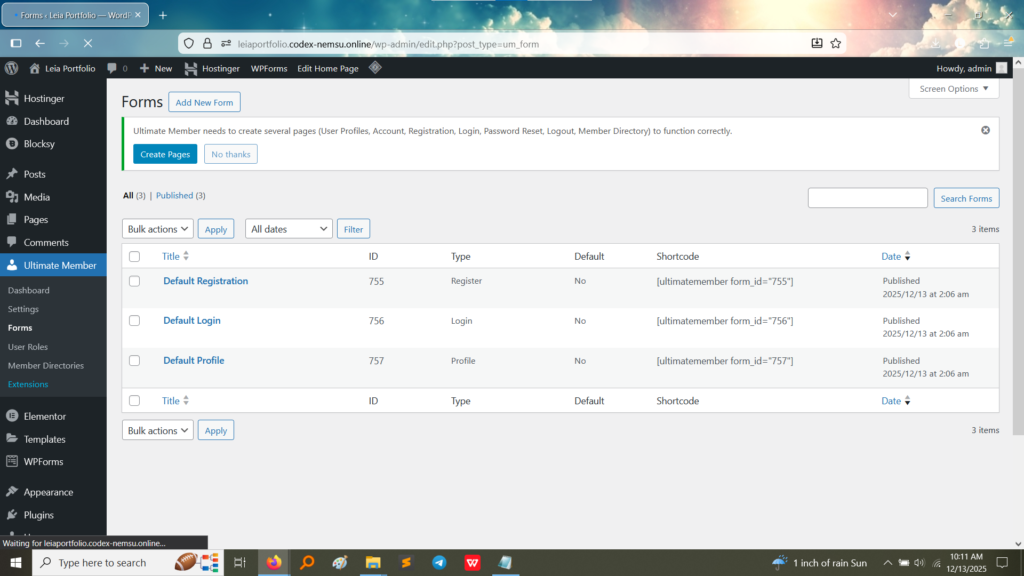
4. Form Management: The plugin uses specific forms for user interactions. This screenshot confirms the presence of default forms for Registration, Login, and Profile, and shows the shortcodes associated with them. These shortcodes are used to embed the forms into the pages created in the previous step. (Image Here: ultimate member – Forms.jpg – showing the “Forms” section listing Default Registration, Login, and Profile forms with their shortcodes)
Frontend (User View): Community Features
These features ensure that the community aspect of the site is functioning and accessible.
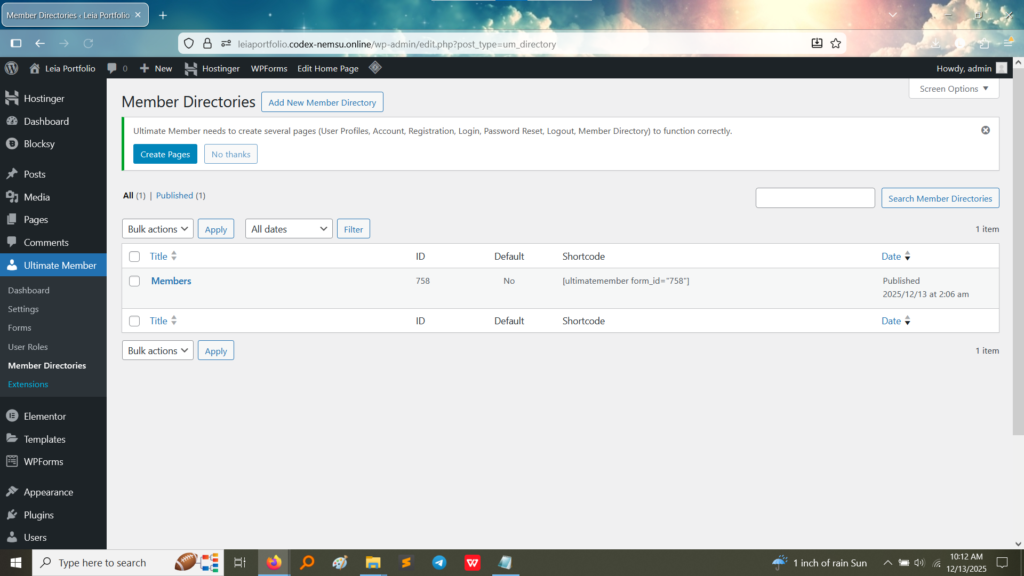
5. Member Directories: This screenshot shows the management page for the Member Directory. The directory is essential for allowing members to view other users (based on privacy settings). The shortcode
is visible, which would be used on a frontend page to display the list of members. (Image Here: ultimate member – Member Directories.jpg – showing the “Member Directories” management page with the shortcode)
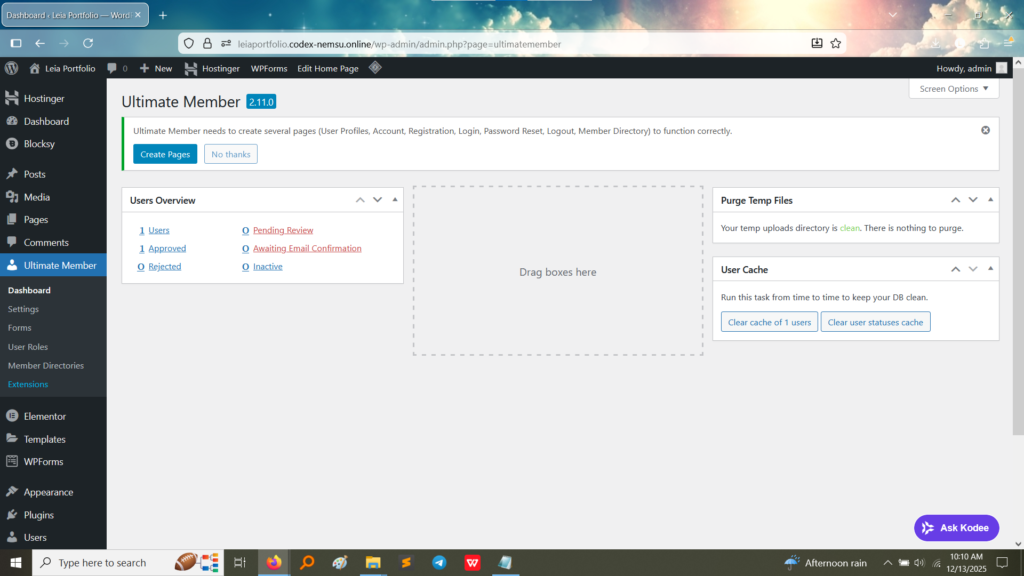
6. Dashboard Overview: The main plugin dashboard provides an overview of the membership system, including the number of users and their status (Pending Review, Approved, etc.), indicating the system is actively monitoring user accounts. (Image Here: ultimate member – Dashboard.jpg – showing the Ultimate Member Dashboard with the “Users Overview” panel)
What I Learned
Configuring Ultimate Member provided critical experience in building a user-focused platform:
Membership Structure: I learned how to structure a website to support user accounts and access control, fundamentally changing the site from a public blog to a membership-driven platform.
Form-to-Page Integration: I understood the workflow of using forms (created in the backend) and embedding them into designated pages (Login, Registration) using shortcodes, which is a core feature of WordPress development.
User Profile Customization: The plugin allows for custom user profile fields and displays, providing a basis for building a social or professional networking aspect into the site.